
How to: Find Broken Links on Your Website
Error! Page Not Found.
Those four words can be incredibly disappointing to someone navigating around your website – even if you do have a legendary 404 page.
No one really wants to be lost on your website, especially when they’re on a mission to donate, register for an event, or otherwise take action with your organization. A broken link is like a dead end on your journey, and it takes effort to go back or figure out exactly where you should go next.
It’s not like it’s breaking news that you should try and fix all of the broken links on your site; every marketing decision-maker has known this for years. But how exactly do you find broken links?
(Waiting for someone to tell you a link is broken isn’t the correct answer.)
Here’s how you can be proactive and make sure your website has no broken links.
What is a Broken Link?
This may seem obvious, but let’s just get on the same page. A broken link is either:
- malformed HTML that looks like a link but, when you click it, does not go to a page
- an otherwise working HTML link that has a typo in it preventing the user from going to the intended page
- a working HTML link that points to a page that does not exist
The result is the same – someone is trying to get to the next stop on their journey, and what appears to be the way to get there doesn’t actually work.
That’s a broken link.
Broken links can also occur with files, if you’re promoting a PDF, PPT, XLS, etc. file as opposed to a standard webpage.
How Do I Find Broken Links on My Website?
There’s a number of tools that will scan your website and look for broken links.
Our favorite link-checking tool is the Screaming Frog SEO Spider. It’s a downloadable piece of software that crawls a website and organizes almost every available piece of data it can grab from that site: the list of pages, all of the images, meta titles and descriptions, internal links, external links, title character count, and so much more.
While it does way more than just find broken links, it’s also the best tool for finding broken links.
Essentially, Screaming Frog sends its crawler through every page, file, and link on your website, then sends back a report of what it found – the good, the bad, and the ugly. Using it, you’ll get a report-like view (as seen below) that lists the broken links on your site, no matter whether they are internal to your site or broken links on external sites.
(Want to try this on your own? Screaming Frog’s Broken Link Checker page is super helpful)
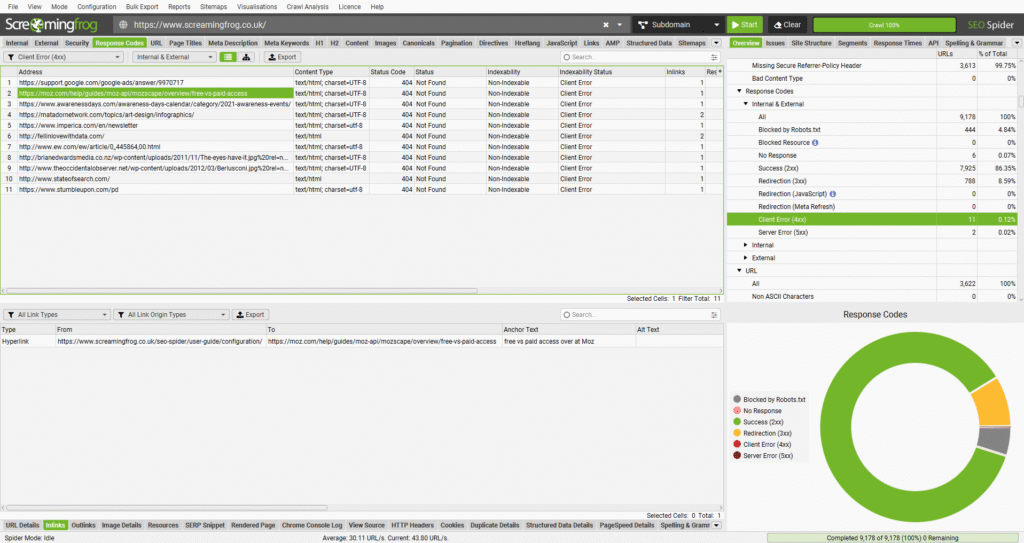
You can see the link that’s broken, then dig deeper and find both the page the broken link is on as well as the text or image that’s linked to the broken page or file.
While there are some websites that promise to help you find broken links for free, they tend not to be as reliable as dedicated software, and some hosts actually block web-based tools from crawling sites on their servers.
Does Google Help With Broken Links?
Sort of!
It’s completely in Google’s interest that there are as few broken links on the Internet as possible, so we all spend more time surfing online (and, in their hopes, clicking on ads).
While Google doesn’t have a specific piece of software or tool that will help you find broken links, they will absolutely tell if you they find a broken link on your website using Google Search Console. As part of their regular reporting, you’ll get an email if they find URLs from your website returning a 404 error code. They’ll all appear on the Indexing -> Pages -> Not found (404) report in Google Search Console.

Oftentimes, Google will find a broken link that is buried so deep on your website you completely forgot it existed. Nevertheless, it is always good to take action when you receive a report of a broken link.
(This is why it’s actually important that Google knows a lot about your website; help Google help you.)
How Should I Fix Broken Links on My Website?
When you find a broken link, either through your proactive search or from a report that comes in, there are a handful of possible fixes.
If it’s malformed HTML or a typo in your link, then the easiest thing to do is fix it and use the right code or page target.
If you’re linking to a page or file that no longer exists, then you have a couple of options:
- you can update the link to a current URL or file, if one exists and it still makes sense in the context of your content and the user’s journey
- you can remove the link completely, and adjust the surrounding content so it’s obvious to a visitor that no link is needed
Whenever you’re fixing a broken link to content that no longer exists, you’ll need to make sure the text that was linked still makes sense – especially to someone reading it for the first time.
Should I Add a Redirect for My Broken Links?
Yes, you should add a redirect for your broken links.
If you’re on WordPress, use the Redirection plugin to redirect users to the corrected link (or most appropriate page). That way, if someone has a bookmark, or there’s a third-party link you can’t control, those users won’t end up on an error page.
But that’s not all you should do.
If a page on your site no longer exists, and you’ve already set up a redirect for its old URL to a new page, you should also find any instance where the old URL is linked and update it to the new URL.
For example, if you previously used the URL /about-us/ on your website, but now you use /about/, you should set up both a redirect so that any traffic going to /about-us/ goes to /about/, and update any page on your site linking to /about-us/ to instead link to /about/.
Doing this helps search engines and AI crawlers recognize that /about/ is the correct page to use, as there are more actual links to it on your site.
Have a question about broken links? Want us to help find broken links on your site? Reach out and let’s chat.